
NotebookLM export guide
Export a NotebookLM quiz to Word (DOCX)
Download the open NotebookLM quiz as an editable DOCX assessment so you can revise questions, apply a template, add instructions and prepare separate learner and answer-key versions.
Chrome extension · Review generated content before publishing or grading
Quick answer
How to export a quiz from Gemini Notebook to Word (DOCX)
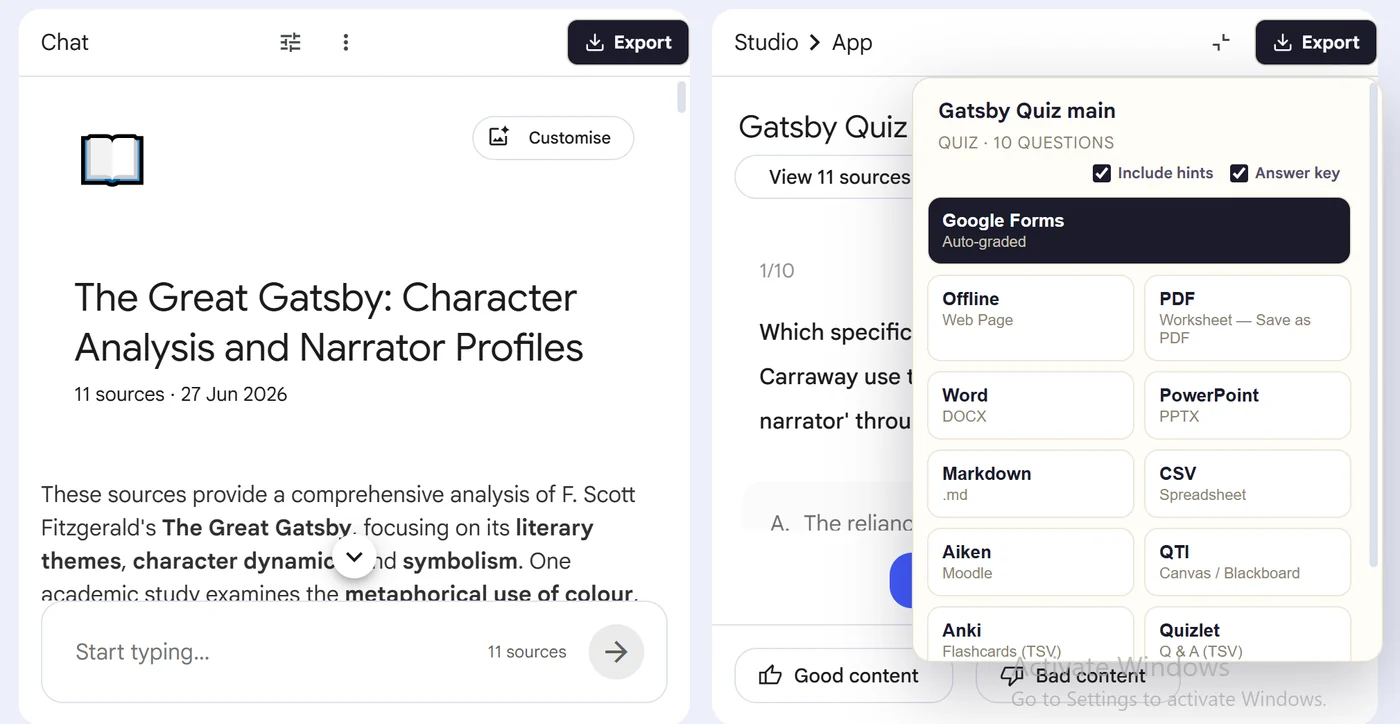
First, install the Super NotebookLM Exporter Chrome extension linked on this page. Next, open NotebookLM Studio, select the completed quiz and wait for the canvas to load. Locate the Export ▾ button at the top of the quiz canvas. Then, choose Word (DOCX) and decide whether the document should include answer information. Finally, download the DOCX file and edit the questions, instructions, layout or answer-key version in Word.
Why export it?
Why export?
Teachers often need to rewrite, reorder or reformat generated questions before assessment. Recreating a NotebookLM quiz in Word by hand separates questions from their choices and makes answer-key errors more likely.
Native option check
Can Gemini Notebook handle this export natively?
NotebookLM notes can be exported to Google Docs, and qualifying paid chat plans can create documents. The extension specifically converts the existing Studio quiz into an editable DOCX assessment.
Product capabilities reviewed against current Google help documentation in August 2026.
✓
A Word (DOCX)-ready output
✓
Questions and choices stay grouped
✓
Less copy-paste and fewer transcription errors
✓
A reusable asset outside NotebookLM
Step-by-step guide
Download a NotebookLM Quiz as Word in 5 Steps
Open NotebookLM Studio, select the completed quiz and wait for the canvas to load
Locate the Export ▾ button at the top of the quiz canvas
Choose Word (DOCX) and decide whether the document should include answer information
Download the DOCX file and edit the questions, instructions, layout or answer-key version in Word
Where it fits
Who uses this export workflow?
01
Editable tests
02
Department templates
03
Accommodated assessments
04
Question-bank review
Common follow-up questions
What people need to know before using this export
Can I edit NotebookLM quiz questions in Word?
Yes. Questions and answer options are exported as editable document content, not flattened into an image.
Can Word create different versions of the test?
After export, you can duplicate the DOCX, reorder questions or choices, and create separate learner or accommodation versions manually.
Can I open the quiz in Google Docs?
Yes. Upload the DOCX to Drive, open it with Google Docs and check formatting before sharing or printing.
Questions, answered
FAQ
Can I export a NotebookLM quiz to Word (DOCX)?+
Yes. Open the quiz, choose Export, select Word (DOCX), and download or import the generated output.
Does the export include answer choices?+
Yes. Multiple-choice questions retain their available options in the destination-appropriate structure.
Does it include correct answers?+
Supported quiz exports carry answer information where the destination format allows it. Review the export settings before creating a student-facing copy.
Should I review the quiz after export?+
Yes. Always verify AI-generated questions, answers and destination formatting before assigning or publishing the quiz.
How do I download a NotebookLM quiz as a Word document?+
Open the completed quiz, choose Word (DOCX) from Super NotebookLM Exporter and download the editable assessment file.
Can I change the questions after downloading the DOCX?+
Yes. Open the document in Word or Google Docs to rewrite questions, adjust choices, add instructions and apply your own assessment template.
Product references
Native-feature comparisons on this page were checked against Google's current Gemini Notebook help pages.
Ready when the artifact is
Export a NotebookLM quiz to Word (DOCX)
Download the open NotebookLM quiz as an editable DOCX assessment so you can revise questions, apply a template, add instructions and prepare separate learner and answer-key versions.
Add to Chrome Extension