
NotebookLM export guide
Export NotebookLM Flashcards to Anki
Export NotebookLM flashcards as UTF-8 tab-separated text, then map each front and back into an Anki note type and target deck.
Chrome extension · Review generated content before publishing or grading
Quick answer
How to export flashcards from Gemini Notebook to Anki
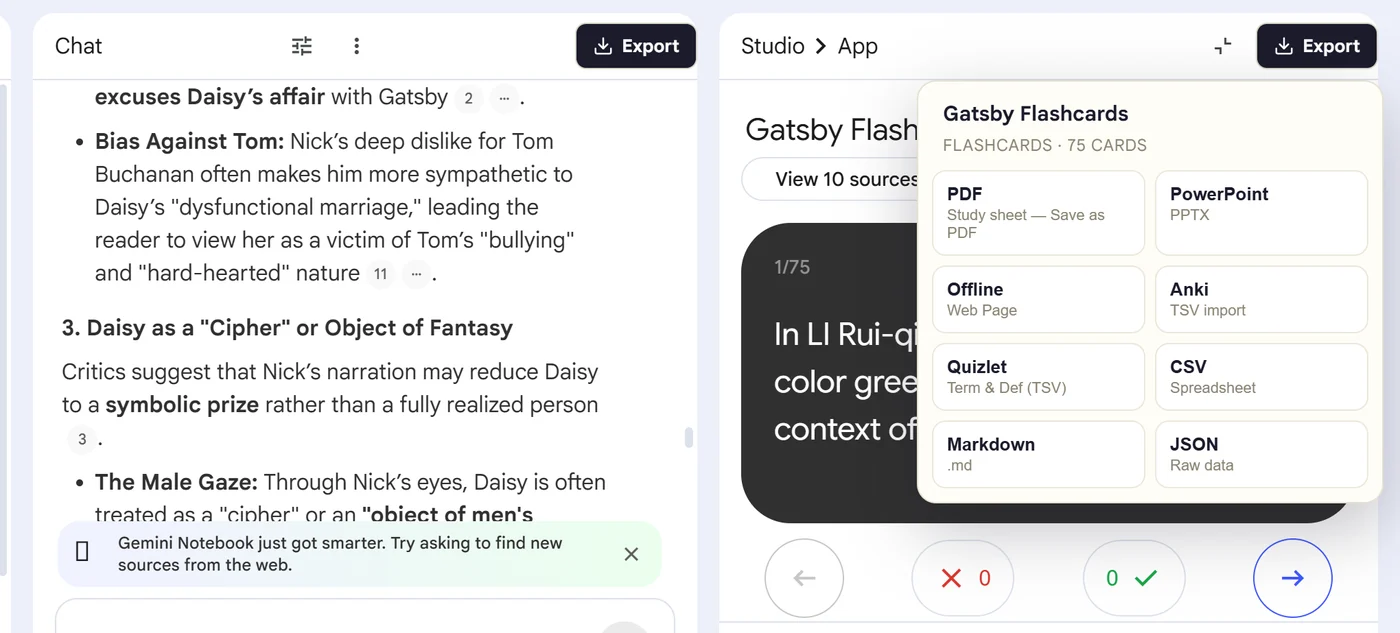
First, install the Super NotebookLM Exporter Chrome extension linked on this page. Next, open NotebookLM Studio, select the flashcard set and wait for the card canvas to load. Locate the Export ▾ button at the top of the flashcard canvas. Then, choose Anki to download the UTF-8 tab-separated file. Finally, open Anki desktop, select File > Import, map Front and Back, select the note type and deck, and inspect the preview before importing.
Why export it?
Why export?
NotebookLM lets learners review a deck, while Anki adds long-term scheduling and custom note types. Retyping cards into Anki wastes time and creates front-back pairing mistakes.
Native option check
Can Gemini Notebook handle this export natively?
NotebookLM's native CSV can be adapted for Anki, but the dedicated Anki output already uses tab-separated Front and Back fields. Anki still controls field mapping, note type, deck and rendering.
Product capabilities reviewed against current Google help documentation in August 2026.
✓
A Anki-ready file
✓
Front-and-back pairs stay together
✓
No card-by-card copy-paste
✓
A portable copy outside the notebook
Step-by-step guide
Download NotebookLM Flashcards for Anki in 5 Steps
Open NotebookLM Studio, select the flashcard set and wait for the card canvas to load
Locate the Export ▾ button at the top of the flashcard canvas
Choose Anki to download the UTF-8 tab-separated file
Open Anki desktop, select File > Import, map Front and Back, select the note type and deck, and inspect the preview before importing
Where it fits
Who uses this export workflow?
01
Spaced repetition
02
Medical exams
03
Certification study
04
Long-term retention
Common follow-up questions
What people need to know before using this export
Can Anki import a text file?
Yes. Anki's manual supports plain-text imports with comma, semicolon or tab-separated fields, provided the file is UTF-8 and the fields are mapped correctly.
Will Anki automatically schedule the cards?
Once imported, the notes produce cards governed by the selected note type, deck options and Anki scheduling settings.
Why do some equations lose formatting?
Anki controls the final card template and rendering. Check HTML import and LaTeX configuration when cards contain mathematical notation.
Questions, answered
FAQ
Can I export NotebookLM flashcards to Anki?+
Yes. Open the flashcard deck, select Export, choose Anki, and complete the destination's import or editing workflow.
Does NotebookLM already export flashcards?+
Gemini Notebook provides a native CSV download. The extension is useful for additional outputs and destination-ready formats.
Will terms and definitions stay paired?+
Yes. Each flashcard front is kept with its corresponding back in the exported structure.
Should I check formatting after import?+
Yes. Review long text, special characters, equations and line breaks because destination apps apply their own formatting rules.
Does NotebookLM export flashcards as an APKG deck?+
No. Super NotebookLM Exporter creates UTF-8 tab-separated text that Anki can import and map to your chosen note type and deck.
How does Anki handle duplicate imported flashcards?+
Anki normally uses the first field to identify duplicate notes. Review the import options carefully if the deck already contains matching fronts.
Product references
Native-feature comparisons on this page were checked against Google's current Gemini Notebook help pages.
Ready when the artifact is
Export NotebookLM Flashcards to Anki
Export NotebookLM flashcards as UTF-8 tab-separated text, then map each front and back into an Anki note type and target deck.
Add to Chrome Extension