
NotebookLM export guide
Export NotebookLM Chat to PDF
Turn the conversation you already completed into a stable document for reading, submission, annotation or long-term storage.
Chrome extension · Review generated content before publishing or grading

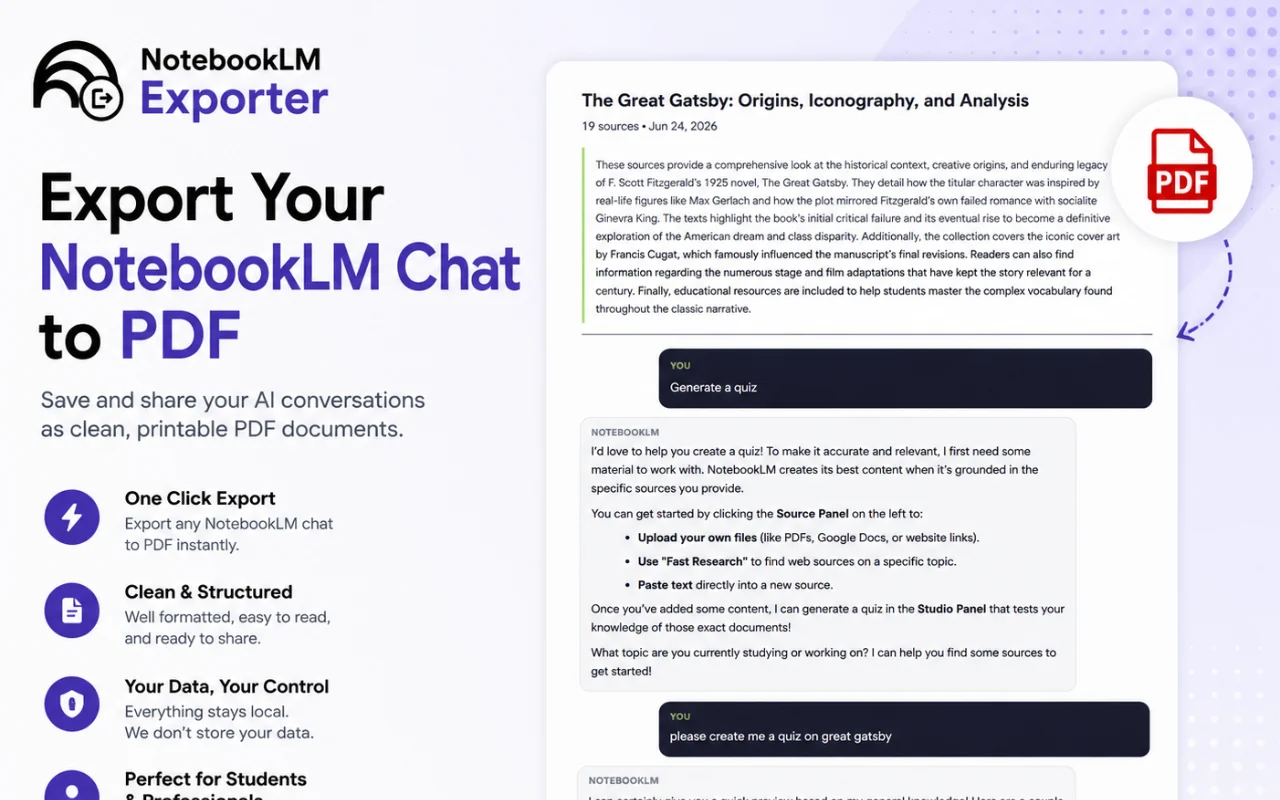
Product preview
See what the export looks like
Quick answer
How to export a Gemini Notebook chat to PDF
First, install the Super NotebookLM Exporter Chrome extension linked on this page. Next, open the notebook, switch to Chat and scroll through the conversation so every required message is loaded. Locate the Export ▾ button added to the Chat panel. Then, click Export ▾ and select PDF. Finally, use Chrome's print window to download the complete conversation as a PDF.
Why export it?
Why export?
Selecting a long browser conversation manually is unreliable: messages can be missed, tables can collapse and speaker boundaries can disappear. A raw print of the app also includes navigation and controls that do not belong in the document.
Native option check
Can Gemini Notebook handle this export natively?
Gemini Notebook can save responses as notes, and paid tiers may generate downloadable documents. This workflow targets the existing multi-message conversation and prepares it as one focused transcript.
Product capabilities reviewed against current Google help documentation in August 2026.
✓
User questions and NotebookLM answers remain distinct
✓
Browser chrome and side panels stay out of the file
✓
Long responses flow across printable pages
✓
One transcript is easier to cite, review and share
Step-by-step guide
Download a NotebookLM Chat as PDF in 5 Steps
Open the notebook, switch to Chat and scroll through the conversation so every required message is loaded
Locate the Export ▾ button added to the Chat panel
Click Export ▾ and select PDF
Use Chrome's print window to download the complete conversation as a PDF
Where it fits
Who uses this export workflow?
01
Research audit trail
02
Supervisor review
03
Reading offline
04
Project documentation
01
Load the complete conversation first
Scroll through the chat before exporting if older messages are not currently visible. Exporting after the thread has loaded reduces the chance of omitting an earlier exchange.
02
Treat citations as references to verify
A PDF can preserve visible citation text, but it cannot recreate NotebookLM's interactive source navigation. Open important citations in NotebookLM and verify them before using the transcript in assessed or published work.
Common follow-up questions
What people need to know before using this export
Can I export the entire NotebookLM chat?
Yes, provided the conversation has loaded in the open chat. Long threads should be reviewed from the beginning before export so older exchanges are not omitted.
Does the PDF preserve NotebookLM citations?
Visible citation text may remain, but a PDF cannot reproduce NotebookLM's interactive jump-to-source behavior. Keep the notebook link with research-critical exports.
Why not use Ctrl+P on the NotebookLM page?
Printing the app itself can include side panels, controls and awkward page breaks. The extension first prepares a transcript-focused document, then opens the print workflow.
Questions, answered
FAQ
Can I download a NotebookLM conversation as one PDF?+
Yes. The exporter collects the visible conversation structure and creates a print-ready transcript that you save as one PDF.
Does this include both prompts and answers?+
Yes. The document separates user messages from NotebookLM responses so the reasoning path remains understandable.
Can I choose individual messages?+
This page focuses on exporting the conversation as a transcript. For a single response, saving it as a NotebookLM note may be the simpler native option.
Is PDF better than Word for a chat export?+
Choose PDF for a stable final copy. Choose Word if you need to rewrite, reorganize or apply institutional formatting after export.
How do I print a NotebookLM chat?+
Install Super NotebookLM Exporter, load the complete conversation, choose PDF from the Export menu and use Chrome's print window to print it or save it as a PDF.
Why does my NotebookLM PDF miss older messages?+
Older messages must be loaded in the Chat panel before export. Scroll through the conversation first, then create the PDF after the full transcript is visible.
Product references
Native-feature comparisons on this page were checked against Google's current Gemini Notebook help pages.
Ready when the artifact is
Export NotebookLM Chat to PDF
Turn the conversation you already completed into a stable document for reading, submission, annotation or long-term storage.
Add to Chrome Extension