
NotebookLM export guide
Print NotebookLM Flashcards as Printable Study Cards
Convert an interactive deck into a compact paper study sheet you can annotate, distribute or use away from a screen.
Chrome extension · Review generated content before publishing or grading
Product preview
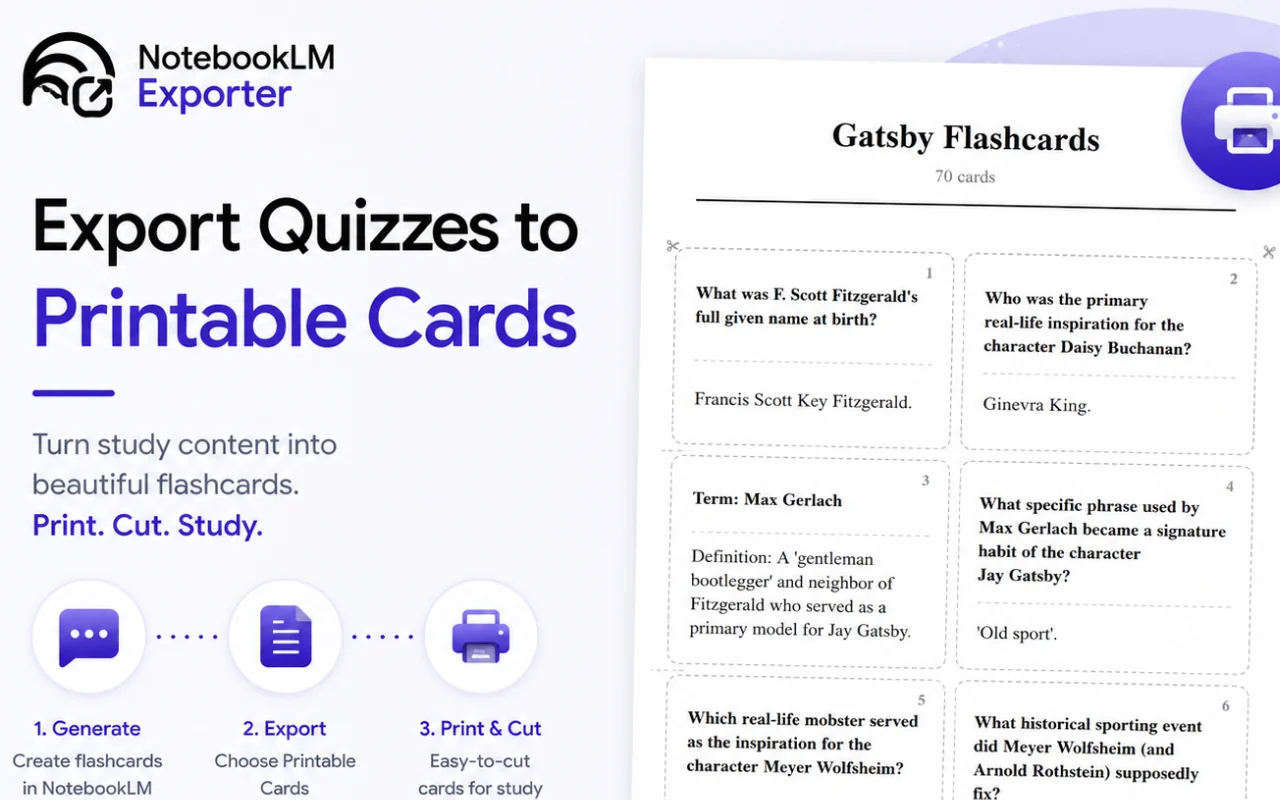
See what the export looks like
Quick answer
How to print flashcards from Gemini Notebook
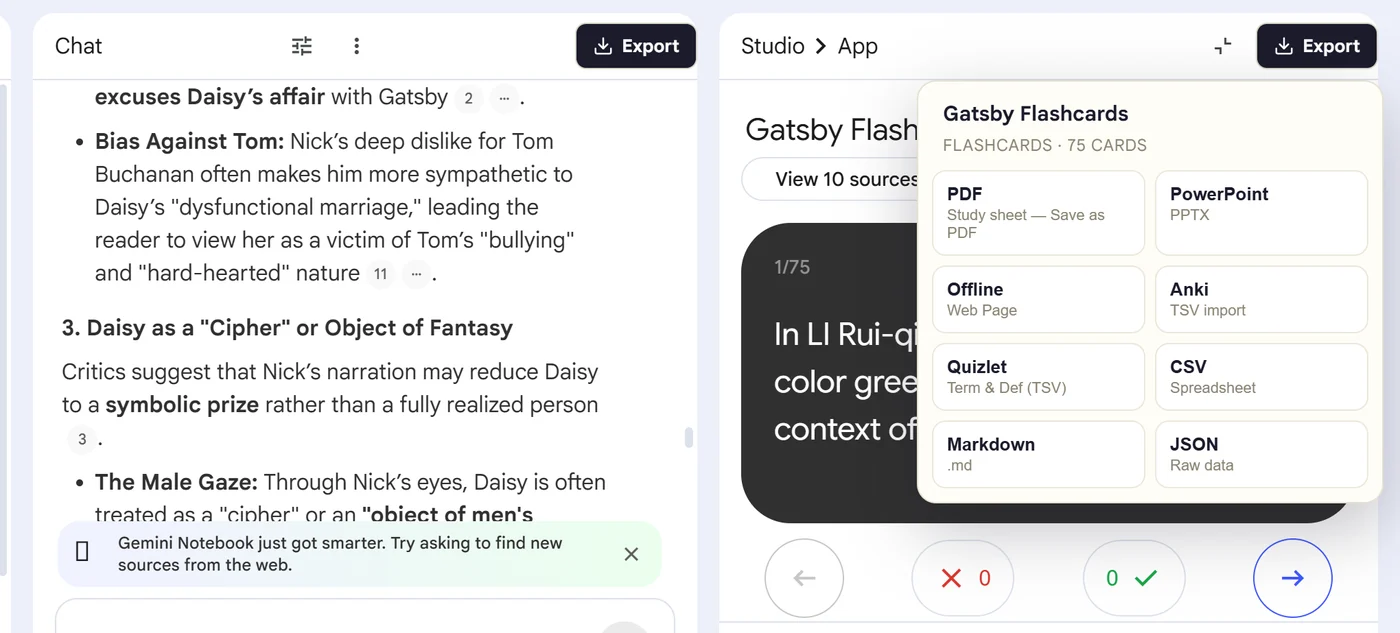
First, install the Super NotebookLM Exporter Chrome extension linked on this page. Next, open NotebookLM Studio, select the flashcard set and wait for the card canvas to load. Locate the Export ▾ button at the top of the flashcard canvas. Then, open the menu and choose the printable PDF study-sheet option. Finally, check the card spacing in print preview and download the sheet with Save as PDF.
Why export it?
Why export?
Native flashcard CSV is useful for data transfer, but it is not formatted as a handout. Building a printable layout manually means resizing and arranging every term-definition pair.
Native option check
Can Gemini Notebook handle this export natively?
Gemini Notebook can download flashcards as CSV. The printable-card workflow is different: it creates a visually organized study sheet intended for paper or PDF distribution.
Product capabilities reviewed against current Google help documentation in August 2026.
✓
Compact term-and-definition grid
✓
Consistent spacing across cards
✓
Works for paper or saved PDF
✓
No spreadsheet formatting required
Step-by-step guide
Download and Print NotebookLM Flashcards in 5 Steps
Open NotebookLM Studio, select the flashcard set and wait for the card canvas to load
Locate the Export ▾ button at the top of the flashcard canvas
Open the menu and choose the printable PDF study-sheet option
Check the card spacing in print preview and download the sheet with Save as PDF
Where it fits
Who uses this export workflow?
01
Classroom stations
02
Revision packs
03
Offline study
04
Accessibility accommodations
01
Study sheet versus cut-out cards
The current printable output is a compact study sheet. If you need duplex cut-out cards, verify the print layout and printer settings before producing a large batch.
02
Use CSV for editing, PDF for distribution
Choose CSV when you need to change terms in bulk. Choose the printable output once the card content is ready to use.
Common follow-up questions
What people need to know before using this export
Are these cut-out, double-sided flashcards?
The current output is a compact study sheet. Check the preview carefully if you plan to cut cards or print duplex, because printer alignment varies.
Can I save the printable cards as a PDF?
Yes. Choose Save as PDF in Chrome's print dialog instead of sending the layout to a physical printer.
Why not use NotebookLM's CSV download?
CSV is ideal for spreadsheet editing and transfer. The printable layout is already organized for reading and paper distribution.
Questions, answered
FAQ
Can NotebookLM flashcards be printed?+
Yes. The extension arranges the open deck into a printable study-sheet layout.
Is this different from NotebookLM's CSV download?+
Yes. CSV is structured data for a spreadsheet or import. The printable output is designed for reading on paper.
Can I save the cards as PDF instead of printing?+
Yes. Choose Save as PDF in the browser print dialog.
Can I edit cards before printing?+
Edit the flashcards in NotebookLM before export, or use CSV when you need a spreadsheet-based cleanup workflow.
How do I download NotebookLM flashcards for printing?+
Open the flashcard canvas, choose the printable PDF option from Super NotebookLM Exporter, review the page layout and save the result as a PDF before printing.
How many NotebookLM flashcards fit on one printed page?+
The number depends on card length, page size and layout. Always inspect print preview because long definitions can increase the number of pages.
Product references
Native-feature comparisons on this page were checked against Google's current Gemini Notebook help pages.
Ready when the artifact is
Print NotebookLM Flashcards as Printable Study Cards
Convert an interactive deck into a compact paper study sheet you can annotate, distribute or use away from a screen.
Add to Chrome Extension