
NotebookLM export guide
How to Export Quiz from NotebookLM
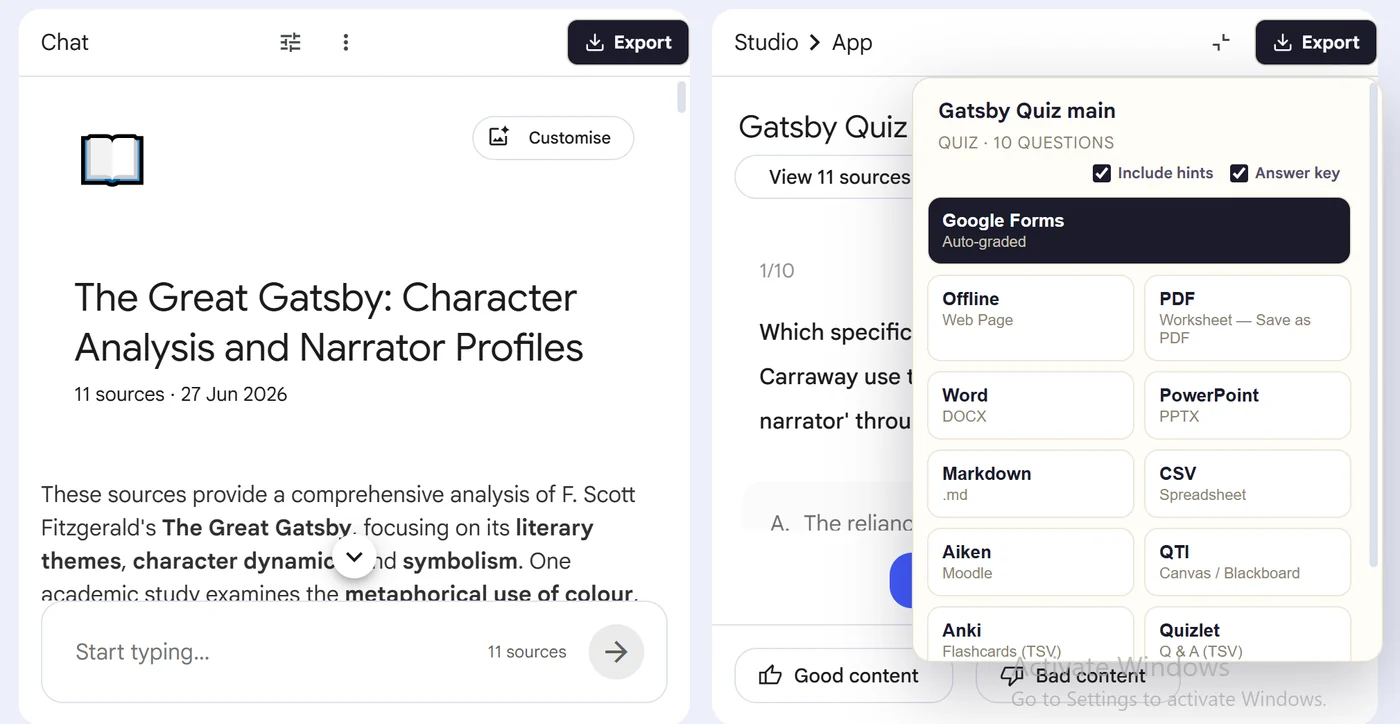
Open a completed quiz in NotebookLM Studio, click the Export button added by the Chrome extension and download it as PDF, Word, PowerPoint, CSV, Markdown, JSON, QTI, Anki or Quizlet.
Chrome extension · Review generated content before publishing or grading
Quick answer
How to Download Your NotebookLM Quiz
First, generate and open the quiz in NotebookLM's right-hand Studio panel. Next, install the Super NotebookLM Exporter Chrome extension linked on this page. Then, wait for the complete quiz canvas to load and locate the Export ▾ button at the top. Choose PDF, Word, PowerPoint, CSV, Markdown, JSON, QTI, Anki or Quizlet. Finally, download the file and check the questions, choices and correct answers before using it.
Why export it?
Why export?
NotebookLM quizzes are designed for interactive practice inside the notebook. Downloading the quiz lets you print it, edit it, present it, import it into another system or keep an offline copy.
Native option check
Can Gemini Notebook handle this export natively?
Gemini Notebook's quiz controls focus on taking, reviewing and retaking a generated quiz. Super NotebookLM Exporter adds the download control and converts the open quiz into destination-ready files.
Product capabilities reviewed against current Google help documentation in August 2026.
✓
Print the quiz as a PDF worksheet
✓
Edit it in Word or a spreadsheet
✓
Present it in PowerPoint
✓
Reuse it in an LMS or study app
Step-by-step guide
Download Your NotebookLM Quiz in 5 Steps
Install the Super NotebookLM Exporter Chrome extension linked on this page
Open the completed quiz and wait until the full quiz canvas has loaded
Click the Export ▾ button at the top of the quiz canvas
Choose PDF, Word, PowerPoint, CSV, Markdown, JSON, QTI, Anki or Quizlet, download the file and review it
Where it fits
Who uses this export workflow?
01
Offline quiz backups
02
Printable classroom assessments
03
Editable quiz documents
04
LMS and study-app imports
01
Choose the format for your next step
Use PDF for printing, Word for editing, PowerPoint for presenting, CSV or JSON for structured data, QTI for compatible learning platforms, and Anki or Quizlet for study.
02
Review the downloaded quiz
Check every generated question, answer choice and correct answer against the notebook sources before assigning, publishing or importing the quiz.
Common follow-up questions
What people need to know before using this export
Where is the quiz download button?
After installing the extension, open a completed quiz and look for the Export ▾ button at the top of the quiz canvas beside the existing controls.
Which download format should I choose?
Choose PDF for printing, Word for editing, PowerPoint for presenting, CSV or JSON for data work, QTI for a compatible LMS, and Anki or Quizlet for study.
Why is the Export button missing?
Confirm the extension is installed and enabled, refresh the NotebookLM tab, reopen the completed quiz and wait for its canvas to finish loading.
Questions, answered
FAQ
Can I download a quiz from NotebookLM?+
Yes. Open the completed quiz and use Super NotebookLM Exporter to download it in a supported document, presentation, data, LMS or study-app format.
Which formats can I download?+
Quiz downloads include PDF, Word, PowerPoint, CSV, Markdown, JSON, QTI, Anki and Quizlet formats. Google Forms uses the dedicated Forms extension.
Does the download include the correct answers?+
Supported formats can include answer information where appropriate. Review the export option and create a separate learner copy when answers should remain hidden.
Can I download more than one quiz?+
Yes. Use NotebookLM Quiz Exporter for Gemini Notebook when you need to discover and download multiple completed quizzes together.
Do I need to copy each NotebookLM quiz question manually?+
No. The extension reads the completed quiz canvas and prepares the selected download without requiring question-by-question copying.
Where is the exported NotebookLM quiz saved?+
Local exports are downloaded through Chrome and use your browser's normal download location or save prompt. Google Forms follows a separate workflow and creates the form in the connected Google Drive account.
Product references
Native-feature comparisons on this page were checked against Google's current Gemini Notebook help pages.
Ready when the artifact is
How to Export Quiz from NotebookLM
Open a completed quiz in NotebookLM Studio, click the Export button added by the Chrome extension and download it as PDF, Word, PowerPoint, CSV, Markdown, JSON, QTI, Anki or Quizlet.
Add to Chrome Extension