
NotebookLM export guide
Export a NotebookLM quiz to Markdown
Save the open NotebookLM quiz as readable Markdown for Obsidian, documentation, Git-based review and text-first publishing workflows.
Chrome extension · Review generated content before publishing or grading
Quick answer
How to export a quiz from Gemini Notebook to Markdown
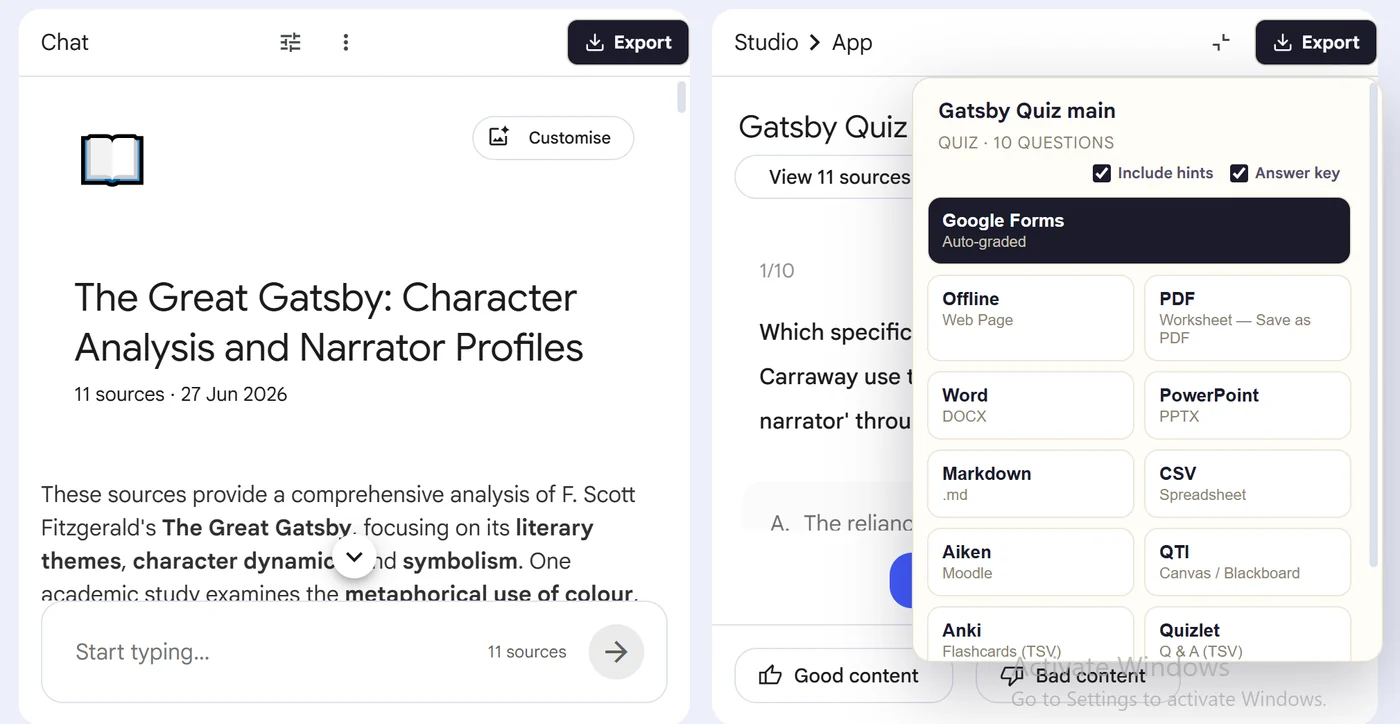
First, install the Super NotebookLM Exporter Chrome extension linked on this page. Next, open NotebookLM Studio, select the completed quiz and wait for the canvas to load. Locate the Export ▾ button at the top of the quiz canvas. Then, choose Markdown and set whether answer information should appear in the file. Finally, download the .md file and review its lists, equations and answer sections in your Markdown editor.
Why export it?
Why export?
Copying quiz text into a knowledge base often loses consistent numbering and answer-choice structure. Markdown creates a readable, versionable source file without editor-specific formatting.
Native option check
Can Gemini Notebook handle this export natively?
Qualifying Gemini Notebook chat plans can generate Markdown files, but the Studio quiz itself does not provide a general Markdown download. The extension converts the completed quiz artifact directly.
Product capabilities reviewed against current Google help documentation in August 2026.
✓
A Markdown-ready output
✓
Questions and choices stay grouped
✓
Less copy-paste and fewer transcription errors
✓
A reusable asset outside NotebookLM
Step-by-step guide
Download a NotebookLM Quiz as Markdown in 5 Steps
Open NotebookLM Studio, select the completed quiz and wait for the canvas to load
Locate the Export ▾ button at the top of the quiz canvas
Choose Markdown and set whether answer information should appear in the file
Download the .md file and review its lists, equations and answer sections in your Markdown editor
Where it fits
Who uses this export workflow?
01
Documentation
02
Git repositories
03
Obsidian notes
04
Publishing workflows
Common follow-up questions
What people need to know before using this export
Can I publish the Markdown quiz on a website?
Yes, after passing it through a Markdown renderer or static-site generator. Add your own interactive behavior if readers need scoring or answer submission.
Can Obsidian open the exported quiz?
Yes. Place the .md file in your vault, then add links, callouts, tags or spaced-repetition syntax according to your plugins.
Does Markdown preserve answer choices?
Yes. The export represents questions and choices as readable text structure, with answer information included according to the selected options.
Questions, answered
FAQ
Can I export a NotebookLM quiz to Markdown?+
Yes. Open the quiz, choose Export, select Markdown, and download or import the generated output.
Does the export include answer choices?+
Yes. Multiple-choice questions retain their available options in the destination-appropriate structure.
Does it include correct answers?+
Supported quiz exports carry answer information where the destination format allows it. Review the export settings before creating a student-facing copy.
Should I review the quiz after export?+
Yes. Always verify AI-generated questions, answers and destination formatting before assigning or publishing the quiz.
Can I open a NotebookLM quiz in Obsidian?+
Yes. Download the quiz as Markdown, place the .md file in your Obsidian vault and add your normal links, properties or tags.
Can Markdown quiz files be converted to PDF or HTML?+
Yes. Markdown editors and static-site tools can render or convert the file, but check lists, equations and answer sections before publishing.
Product references
Native-feature comparisons on this page were checked against Google's current Gemini Notebook help pages.
Ready when the artifact is
Export a NotebookLM quiz to Markdown
Save the open NotebookLM quiz as readable Markdown for Obsidian, documentation, Git-based review and text-first publishing workflows.
Add to Chrome Extension