
NotebookLM export guide
NotebookLM Quiz Exporter for Forms, PDF, Word, PPT and LMS
Download the quiz open in NotebookLM with its questions, answer choices and correct answers kept together. Choose PDF for printing, Word for editing, PowerPoint for presenting, QTI for an LMS, or Anki and Quizlet for study.
Chrome extension · Review generated content before publishing or grading
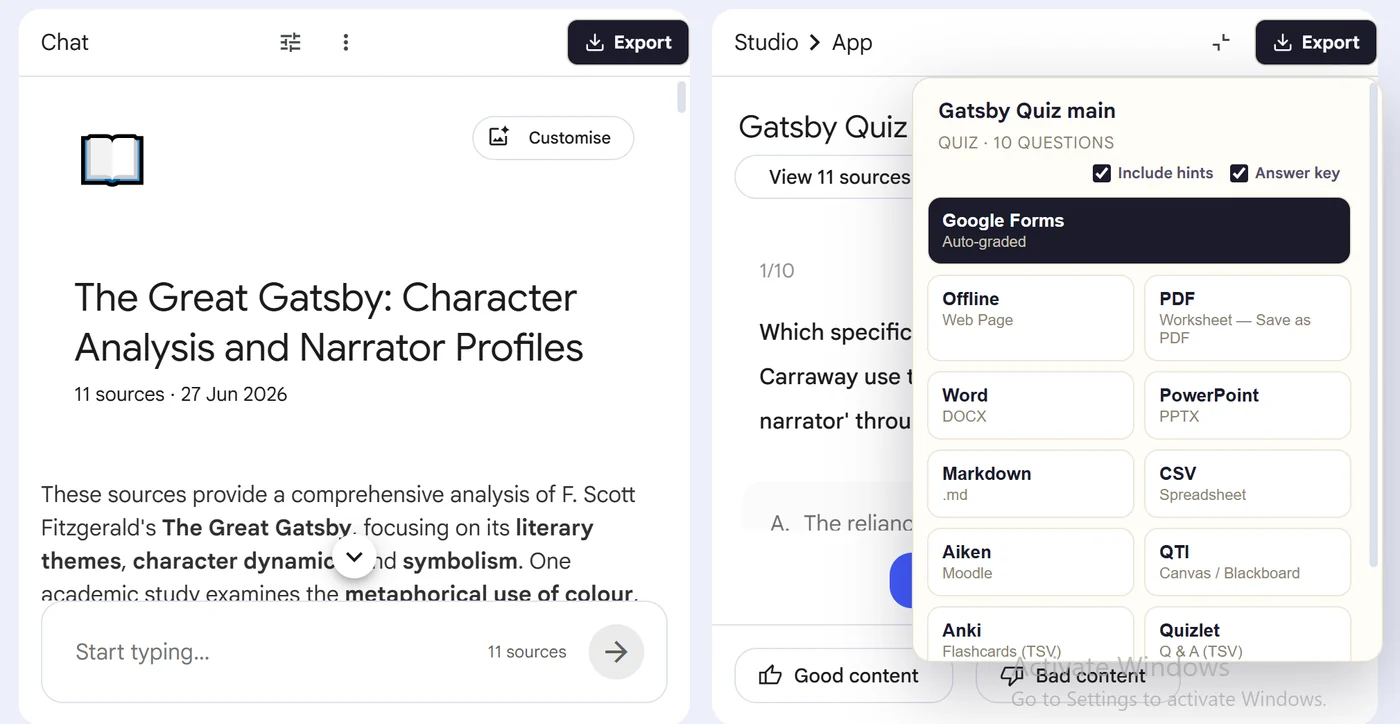
Product preview
See what the export looks like
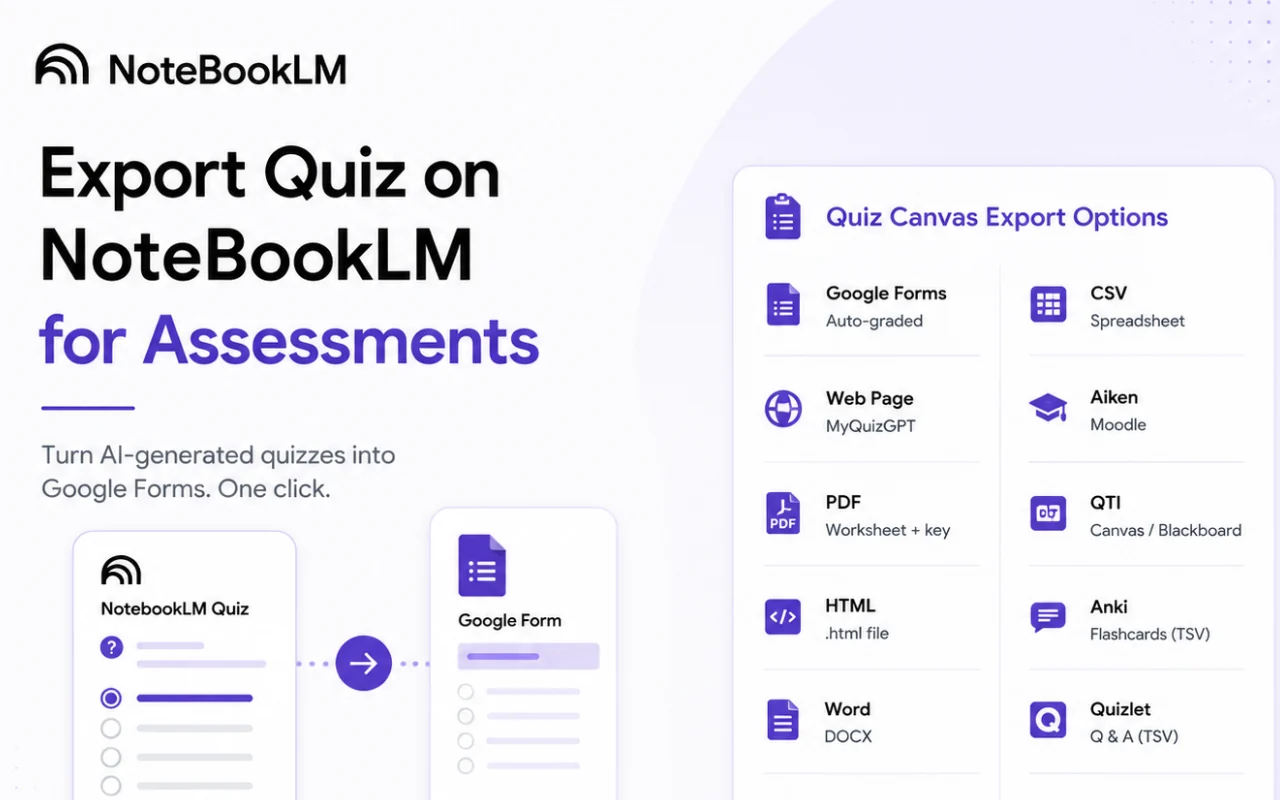
Quick answer
How to export a quiz from Gemini Notebook
First, install the Super NotebookLM Exporter Chrome extension linked on this page. Next, open NotebookLM Studio, select a completed quiz and wait for the quiz canvas to load. Locate the Export ▾ button at the top of the quiz canvas beside the existing controls. Then, choose the destination you need, such as PDF, Word, PowerPoint, CSV, QTI, Anki, Quizlet, Markdown or JSON. Finally, download the file or complete the destination import, then review the questions and correct answers.
Why export it?
Why export?
NotebookLM creates interactive quizzes for practice inside the product. Teachers and training teams often need the same questions in systems where they assign, edit, present, print, import or archive assessments.
Native option check
Can Gemini Notebook handle this export natively?
Gemini Notebook's native quiz controls currently cover taking the quiz, hints, navigation, results and retakes. The export workflow extends that quiz into destination-specific files and services.
Product capabilities reviewed against current Google help documentation in August 2026.
✓
Documents: PDF worksheet and Word
✓
Presentations: PowerPoint
✓
Platforms: Google Forms, Anki and Quizlet
✓
Data and LMS: CSV, JSON, Markdown and QTI
Step-by-step guide
Download a NotebookLM Quiz in 5 Steps
Open NotebookLM Studio, select a completed quiz and wait for the quiz canvas to load
Locate the Export ▾ button at the top of the quiz canvas beside the existing controls
Choose the destination you need, such as PDF, Word, PowerPoint, CSV, QTI, Anki, Quizlet, Markdown or JSON
Download the file or complete the destination import, then review the questions and correct answers
Where it fits
Who uses this export workflow?
01
Printable assessments
02
Auto-graded forms
03
LMS question banks
04
Review presentations
01
Choose by what happens next
Use PDF for distribution, Word for editing, PowerPoint for facilitated review, Google Forms for responses, QTI for an LMS, CSV or JSON for data work, and Anki or Quizlet for retrieval practice.
02
Export does not remove the need for review
NotebookLM quizzes are generated from your sources, but question quality and answer clarity still require a human check—especially before grading learners.
Common follow-up questions
What people need to know before using this export
What is the best format for exporting a NotebookLM quiz?
There is no single best format. PDF suits paper, Word suits editing, Forms suits online collection, QTI suits compatible LMS imports, and CSV or JSON suits data workflows.
Can I export more than one quiz?
Use the dedicated batch exporter when a notebook contains multiple completed quizzes. Super NotebookLM Exporter is optimized for the currently open artifact.
Does exporting verify the quiz answers?
No. Exporting preserves the quiz structure, but a person should still verify facts, ambiguity and the selected answer against the source material.
Questions, answered
FAQ
How do I export a quiz from NotebookLM?+
Open the quiz in Studio, click the export control added by the extension, then select the destination format.
Can I export NotebookLM quizzes to Google Forms?+
Yes. The dedicated Google Forms extension creates the form workflow; use the Forms page for the exact steps.
Can I import a NotebookLM quiz into Canvas or Blackboard?+
Use the QTI export for LMS platforms that accept compatible QTI packages. Confirm the exact QTI support in your LMS before a high-stakes migration.
Can I export several quizzes together?+
Yes. Use NotebookLM Quiz Exporter for Gemini Notebook to discover and export multiple completed quizzes from a notebook.
How do I copy a quiz from NotebookLM without retyping it?+
Open the completed quiz canvas and use Super NotebookLM Exporter's Export button. Choose a document, presentation, data, LMS or study-app format so the questions and choices are prepared together.
What is the best format for a NotebookLM quiz?+
Use PDF for printing, Word for editing, PowerPoint for presenting, QTI for a compatible LMS, and CSV or JSON when you need structured data.
Product references
Native-feature comparisons on this page were checked against Google's current Gemini Notebook help pages.
Ready when the artifact is
NotebookLM Quiz Exporter for Forms, PDF, Word, PPT and LMS
Download the quiz open in NotebookLM with its questions, answer choices and correct answers kept together. Choose PDF for printing, Word for editing, PowerPoint for presenting, QTI for an LMS, or Anki and Quizlet for study.
Add to Chrome Extension