
NotebookLM export guide
Export a NotebookLM Quiz to a Printable Worksheet
Take an interactive Studio quiz into the classroom with a paper-friendly layout built for practice, homework or assessment.
Chrome extension · Review generated content before publishing or grading
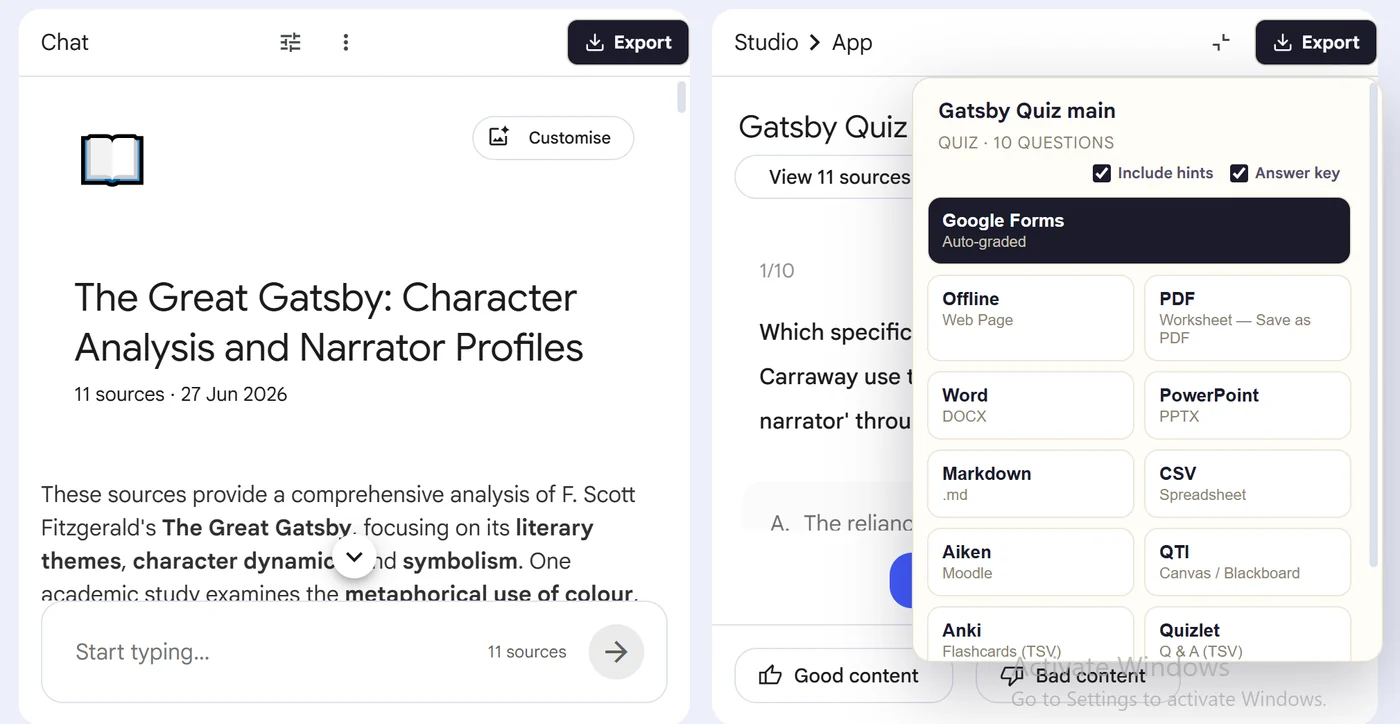
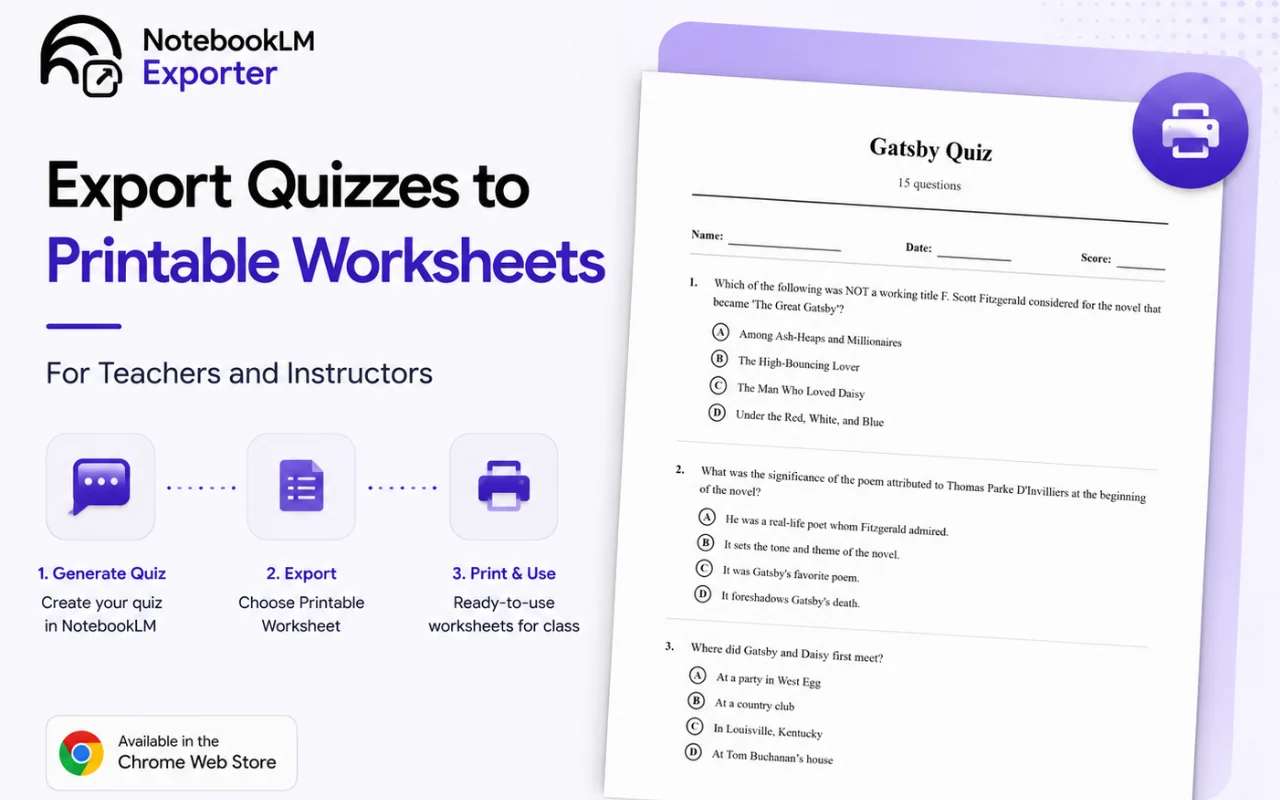
Product preview
See what the export looks like
Quick answer
How to export a quiz from Gemini Notebook as a printable worksheet
First, install the Super NotebookLM Exporter Chrome extension linked on this page. Next, open NotebookLM Studio, select the completed quiz and wait for the quiz canvas to load. Locate the Export ▾ button at the top of the quiz canvas beside the NotebookLM controls. Then, choose PDF worksheet and set whether answer information should be included. Finally, download one student copy without answers and, when needed, a separate teacher copy with the key.
Why export it?
Why export?
An interactive quiz is useful for individual practice, but it does not automatically become a classroom handout. Copying every question and option into a document wastes preparation time and invites answer-key mistakes.
Native option check
Can Gemini Notebook handle this export natively?
Google's current quiz controls focus on taking, reviewing and retaking a quiz. The extension adds a print workflow designed around questions, choices and answer information.
Product capabilities reviewed against current Google help documentation in August 2026.
✓
Numbered questions and readable options
✓
Optional answer information
✓
Print preview before saving
✓
A reusable handout you can use outside the notebook
Step-by-step guide
Download a NotebookLM Quiz Worksheet in 5 Steps
Open NotebookLM Studio, select the completed quiz and wait for the quiz canvas to load
Locate the Export ▾ button at the top of the quiz canvas beside the NotebookLM controls
Choose PDF worksheet and set whether answer information should be included
Download one student copy without answers and, when needed, a separate teacher copy with the key
Where it fits
Who uses this export workflow?
01
Exit tickets
02
Homework
03
Revision sessions
04
Substitute-teacher packs
01
Prepare separate student and teacher copies
Export once without answers for learners, then create a second copy with answer information for marking. Use clear filenames so the key is not distributed accidentally.
02
Check generated questions before assessment
NotebookLM quizzes are AI-generated. Review wording, answer choices and source alignment before using any export for grading.
Common follow-up questions
What people need to know before using this export
Can I print a NotebookLM quiz without answers?
Yes. Disable answer information for the learner copy, then export a second version with the key for marking.
Can I edit the worksheet before printing?
For significant editing, use the Word export first. The PDF worksheet is best once questions and answer choices are ready to distribute.
Is the worksheet ready for grading automatically?
No. A printable worksheet is designed for paper delivery. Use Google Forms for online responses and automated scoring.
Questions, answered
FAQ
Can I print a quiz from NotebookLM?+
Yes. The exporter converts the open quiz into a print-ready worksheet that can be printed directly or saved as PDF.
Can the worksheet include an answer key?+
Yes. Choose whether answer information should be included when preparing the export.
Does it preserve multiple-choice options?+
Yes. Questions and their answer options are arranged into a readable worksheet format.
Can I edit the worksheet?+
For extensive editing, export the quiz to Word instead. PDF is best when the worksheet is ready to distribute.
Does NotebookLM let me download a generated quiz?+
NotebookLM's native quiz controls focus on taking, reviewing and retaking the quiz. Super NotebookLM Exporter adds a downloadable worksheet workflow for the open quiz.
Can I turn a NotebookLM quiz into a classroom test?+
Yes. Download a student worksheet without answers and create a separate teacher version with the answer key, then verify every question before distribution.
Product references
Native-feature comparisons on this page were checked against Google's current Gemini Notebook help pages.
Ready when the artifact is
Export a NotebookLM Quiz to a Printable Worksheet
Take an interactive Studio quiz into the classroom with a paper-friendly layout built for practice, homework or assessment.
Add to Chrome Extension