
NotebookLM export guide
Export NotebookLM Flashcards to PowerPoint (PPTX)
Download the open NotebookLM flashcard deck as an editable PPTX presentation for projected review, classroom games and instructor-led retrieval practice.
Chrome extension · Review generated content before publishing or grading
Quick answer
How to export flashcards from Gemini Notebook to PowerPoint (PPTX)
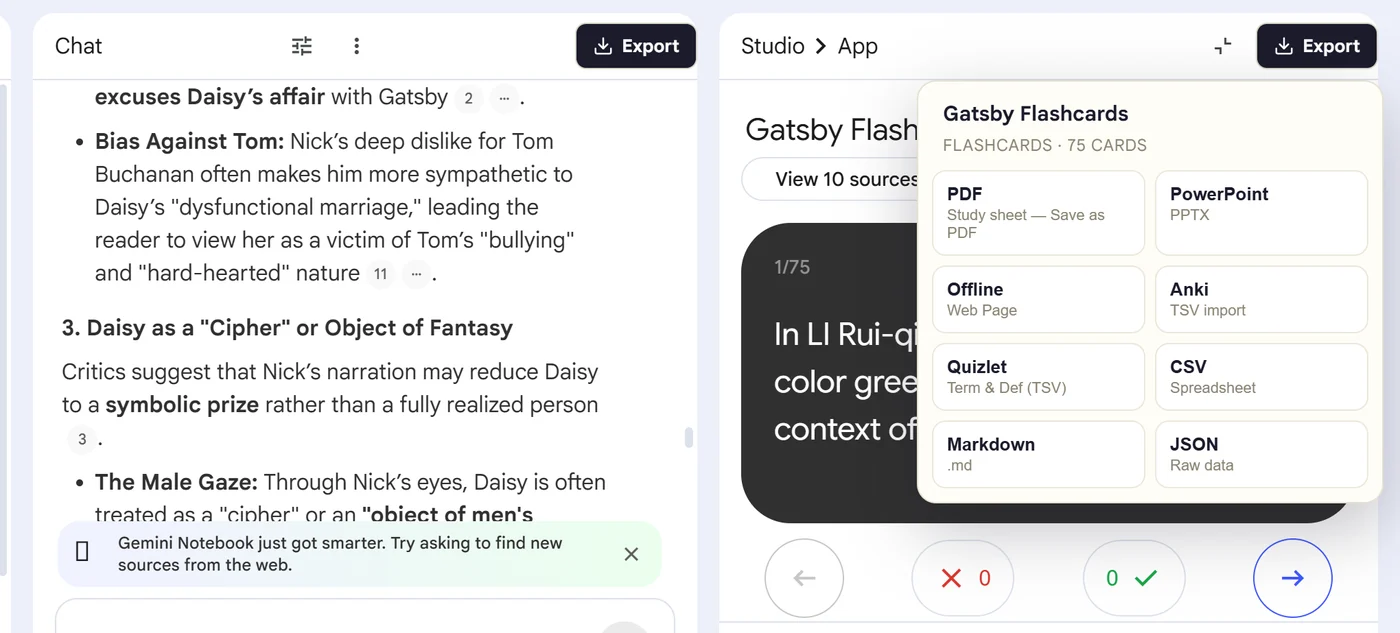
First, install the Super NotebookLM Exporter Chrome extension linked on this page. Next, open NotebookLM Studio, select the flashcard set and wait for the card canvas to load. Locate the Export ▾ button at the top of the flashcard canvas. Then, open the format menu and choose PowerPoint (PPTX). Finally, download the PPTX deck, open it in PowerPoint or Google Slides and check text length, answer reveals and theme styling.
Why export it?
Why export?
NotebookLM flashcards are designed for individual study inside the app. They are awkward for projected review because an instructor cannot easily apply a lesson theme, reorder slides or control answer reveals.
Native option check
Can Gemini Notebook handle this export natively?
NotebookLM can download flashcards as CSV, but CSV is not a presentation. The extension creates an editable PPTX deck from the open cards for group teaching and presentation workflows.
Product capabilities reviewed against current Google help documentation in August 2026.
✓
A PowerPoint (PPTX)-ready file
✓
Front-and-back pairs stay together
✓
No card-by-card copy-paste
✓
A portable copy outside the notebook
Step-by-step guide
Download NotebookLM Flashcards as PowerPoint in 5 Steps
Open NotebookLM Studio, select the flashcard set and wait for the card canvas to load
Locate the Export ▾ button at the top of the flashcard canvas
Open the format menu and choose PowerPoint (PPTX)
Download the PPTX deck, open it in PowerPoint or Google Slides and check text length, answer reveals and theme styling
Where it fits
Who uses this export workflow?
01
Instructor-led review
02
Study games
03
Training decks
04
Class presentations
Common follow-up questions
What people need to know before using this export
Can I edit the flashcard PowerPoint?
Yes. The output is a PPTX file, so slide text, order, theme and branding can be changed.
Can I upload the PPTX to Google Slides?
Yes. Upload it to Drive and open it with Google Slides, then review font substitution and spacing.
Is PowerPoint better than printable cards?
PowerPoint is better for group review and projected teaching. Printable cards are better for individual offline study and handouts.
Questions, answered
FAQ
Can I export NotebookLM flashcards to PowerPoint (PPTX)?+
Yes. Open the flashcard deck, select Export, choose PowerPoint (PPTX), and complete the destination's import or editing workflow.
Does NotebookLM already export flashcards?+
Gemini Notebook provides a native CSV download. The extension is useful for additional outputs and destination-ready formats.
Will terms and definitions stay paired?+
Yes. Each flashcard front is kept with its corresponding back in the exported structure.
Should I check formatting after import?+
Yes. Review long text, special characters, equations and line breaks because destination apps apply their own formatting rules.
Can I open NotebookLM flashcard slides in Google Slides?+
Yes. Upload the downloaded PPTX to Google Drive and open it with Google Slides, then review text fit and answer-reveal layouts.
Can I edit the flashcards after PowerPoint export?+
Yes. The PPTX is editable, so you can restyle slides, shorten definitions, reorder cards and combine them with lesson material.
Product references
Native-feature comparisons on this page were checked against Google's current Gemini Notebook help pages.
Ready when the artifact is
Export NotebookLM Flashcards to PowerPoint (PPTX)
Download the open NotebookLM flashcard deck as an editable PPTX presentation for projected review, classroom games and instructor-led retrieval practice.
Add to Chrome Extension