
NotebookLM export guide
Export NotebookLM Flashcards to Markdown
Save NotebookLM flashcards as portable Markdown for Obsidian, Git repositories, documentation systems and text-based study workflows.
Chrome extension · Review generated content before publishing or grading
Quick answer
How to export flashcards from Gemini Notebook to Markdown
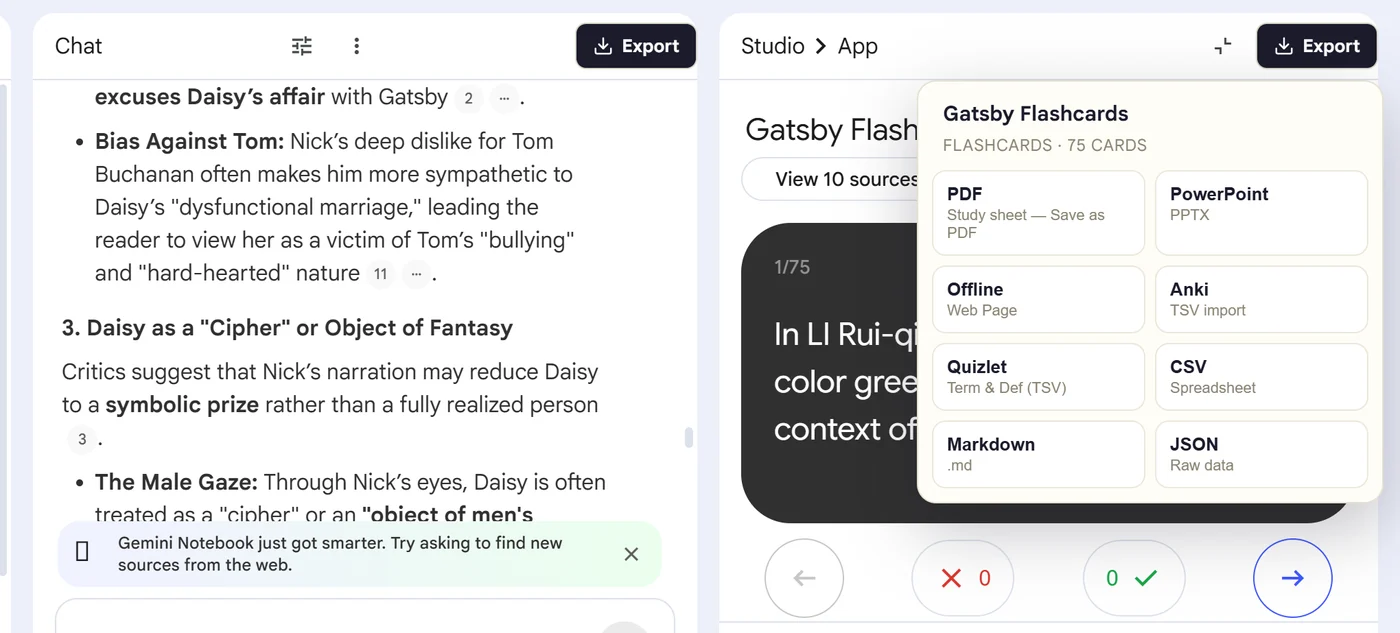
First, install the Super NotebookLM Exporter Chrome extension linked on this page. Next, open NotebookLM Studio, select the flashcard set and wait for the card canvas to load. Locate the Export ▾ button at the top of the flashcard canvas. Then, open the menu and choose Markdown. Finally, download the .md file and move it into Obsidian, your repository or another Markdown-based study system.
Why export it?
Why export?
CSV is useful for data, but it is uncomfortable to read in a text-first knowledge base. Markdown keeps each front and back human-readable while remaining portable across editors and repositories.
Native option check
Can Gemini Notebook handle this export natively?
NotebookLM natively downloads flashcards as CSV, not Markdown. Use CSV for spreadsheet work and the extension's Markdown output for Obsidian, documentation and publishing workflows.
Product capabilities reviewed against current Google help documentation in August 2026.
✓
A Markdown-ready file
✓
Front-and-back pairs stay together
✓
No card-by-card copy-paste
✓
A portable copy outside the notebook
Step-by-step guide
Download NotebookLM Flashcards as Markdown in 5 Steps
Open NotebookLM Studio, select the flashcard set and wait for the card canvas to load
Locate the Export ▾ button at the top of the flashcard canvas
Open the menu and choose Markdown
Download the .md file and move it into Obsidian, your repository or another Markdown-based study system
Where it fits
Who uses this export workflow?
01
Obsidian
02
GitHub
03
Local notes
04
Static publishing
Common follow-up questions
What people need to know before using this export
Can Obsidian use the exported flashcards?
Obsidian can open the Markdown directly. Turning the content into scheduled cards depends on the syntax required by your chosen flashcard plugin.
Is Markdown a flashcard app format?
No. It is a portable text format. Study behavior must come from the destination app, plugin or custom site.
Why choose Markdown instead of CSV?
Markdown is easier to read and publish as prose. CSV is easier to edit in bulk as rows and columns.
Questions, answered
FAQ
Can I export NotebookLM flashcards to Markdown?+
Yes. Open the flashcard deck, select Export, choose Markdown, and complete the destination's import or editing workflow.
Does NotebookLM already export flashcards?+
Gemini Notebook provides a native CSV download. The extension is useful for additional outputs and destination-ready formats.
Will terms and definitions stay paired?+
Yes. Each flashcard front is kept with its corresponding back in the exported structure.
Should I check formatting after import?+
Yes. Review long text, special characters, equations and line breaks because destination apps apply their own formatting rules.
Can I import NotebookLM flashcards into Obsidian?+
Yes. Download the deck as Markdown and move the .md file into your vault, where you can add links, tags and other Obsidian formatting.
Is Markdown better than CSV for flashcards?+
Markdown is easier to read and publish as text. CSV is better for spreadsheet cleanup, sorting and row-based imports.
Product references
Native-feature comparisons on this page were checked against Google's current Gemini Notebook help pages.
Ready when the artifact is
Export NotebookLM Flashcards to Markdown
Save NotebookLM flashcards as portable Markdown for Obsidian, Git repositories, documentation systems and text-based study workflows.
Add to Chrome Extension